Why large uploads to cloud storage fail, and how resuming actually works
A 40 GB upload that dies at 78% and starts over from zero is not bad luck. It is what happens when a large file is sent as one request — and the fix is well understood.
You start a 40 GB upload before lunch. You come back and the progress bar says 0%, or the transfer says it failed at 78%, and the only option on offer is to start again. Two hours of bandwidth, gone, with nothing to show for it.
This is not bad luck and it is not your connection being unusually terrible. It is what happens when a large file is sent to object storage as a single request. Here is why that fails, and what a transfer has to do differently to survive it.
Why one big request is fragile
When a file goes up as a single HTTP request, that request has to stay open from the first byte to the last. For a 40 GB file on a 100 Mbit connection, that is roughly an hour of one uninterrupted conversation between your computer and a server on the other side of the world.
In that hour, any of the following ends the request:
- Your laptop's Wi-Fi drops for three seconds as you walk past a thick wall.
- A router somewhere between you and the storage region reboots.
- The provider's load balancer hits its idle or total-duration timeout.
- Your ISP silently drops a long-lived connection it considers stale.
- Your machine sleeps.
None of these are rare over an hour. And because the request carried the whole file, there is no partial result to keep. The server discards what it received, and the next attempt starts from zero.
There is also a hard ceiling. Amazon S3 refuses any single
PutObject larger than 5 GB, and most S3-compatible providers copy that
limit. Above it, a single request is not merely fragile — it is rejected outright.
The fix: cut the file into parts
Every S3-compatible service supports a different way of uploading, usually called multipart upload. Instead of one long request, the file is cut into numbered chunks and each chunk is sent as its own short request. The sequence looks like this:
- Tell the server you are starting a multipart upload. It replies with an ID.
- Send part 1, part 2, part 3… each as a separate request. The server stores each one and returns a checksum for it.
- When every part has landed, tell the server to assemble them. Only then does the finished object appear in the bucket.
The important property is in step 2. Each part is an independent request lasting seconds or a minute, not an hour. If one fails, only that part is lost. And because the server is holding the parts that already succeeded, a retry only needs to send what is missing.
What this means in practice
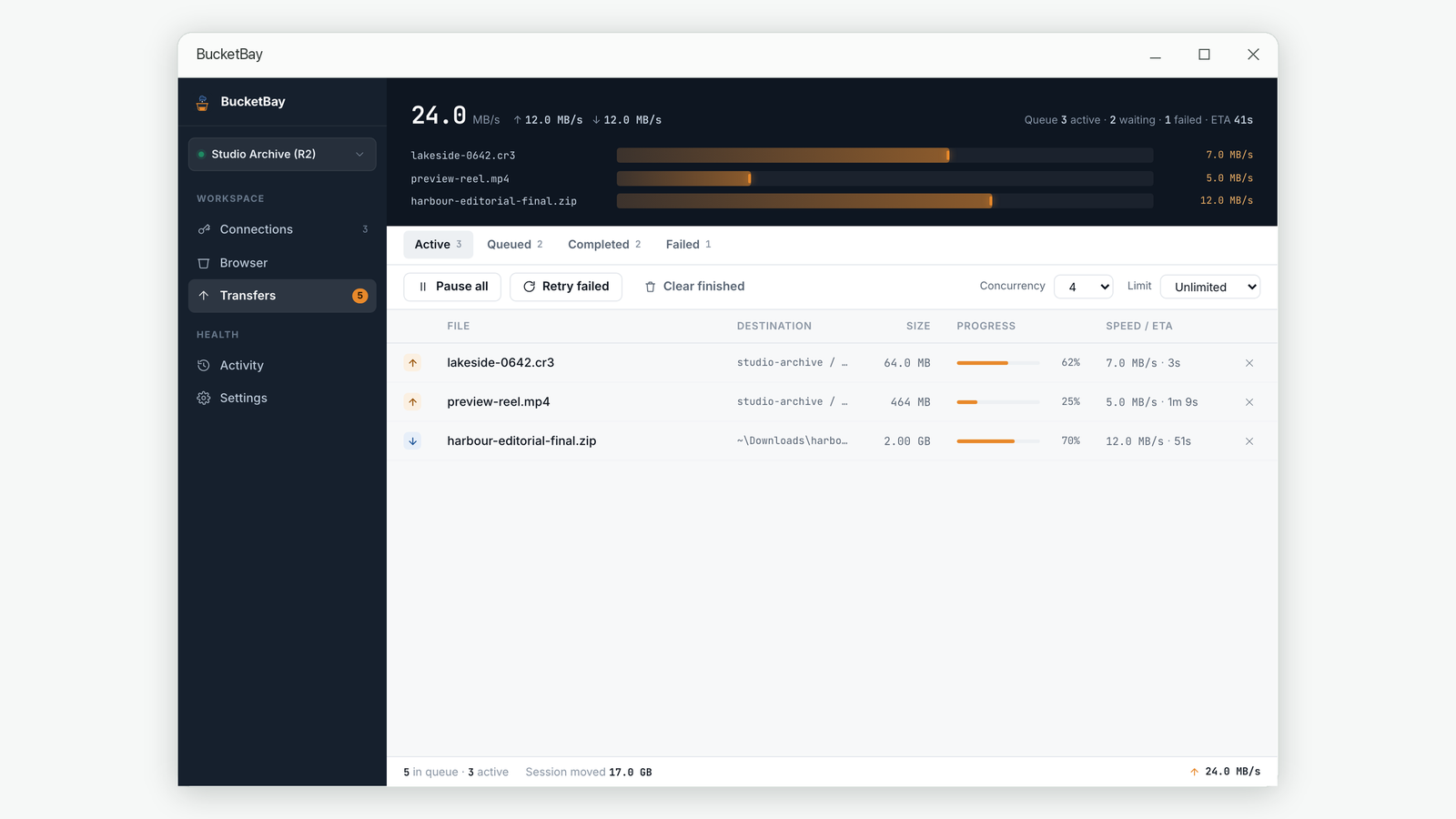
A 40 GB file cut into 16 MB parts becomes about 2,500 small uploads. If the connection dies at 78%, roughly 1,950 parts are already sitting on the server. Resuming means asking the server which parts it has, then sending the remaining 550. You lose the one part that was in flight, not the 31 GB that already arrived.
Choosing a part size
Part size is the one setting worth understanding. The trade-off is simple:
| Part size | What you gain | What it costs |
|---|---|---|
| Small (5–8 MB) |
A failure loses very little. Good on an unreliable mobile or hotel connection. | Many more requests. Some providers bill per request, and the per-request overhead starts to dominate on a fast link. |
| Medium (16–32 MB) |
A sensible default for most home and office connections. | Nothing much. This is the range to stay in unless you have a reason not to. |
| Large (100 MB+) |
Fewer requests, slightly better throughput on a very fast, very stable link. | Each failure throws away more work. On a flaky link you can end up making no progress at all. |
Two constraints are fixed by the protocol and worth knowing: every part except the last must be at least 5 MB, and no upload may have more than 10,000 parts. The second one only matters for very large files — at 16 MB parts you hit the limit at about 160 GB, so files above that need bigger parts.
The part of resuming that goes wrong
Resuming sounds simple: ask which parts arrived, send the rest. There is a trap in it that is worth knowing about, because it fails silently.
A part number is just an index into a layout. Part 3 means "the third chunk", and which bytes that refers to depends entirely on the chunk size in use when it was uploaded. If you upload part 3 with 10 MB chunks, then change the setting to 20 MB and resume, the software may happily skip "part 3" — but the part sitting on the server covers bytes 20–30 MB while the new layout expects it to cover 40–60 MB.
The result is a corrupt file that reports success. The assembly step does not check for gaps or overlaps. It concatenates whatever parts you list and returns 200 OK. The object appears in the bucket at a plausible size, and you discover the problem months later when something fails to open it.
The same thing happens if the local file is edited between attempts. The safe rule is that resumed parts must be validated — by size against the expected layout, and by age against the file's modification time — and thrown away if anything does not line up. Starting over costs bandwidth; assembling a corrupt object costs you the data.
What to check in whatever tool you use
- Does a failed transfer offer to resume, or only to restart? If the only option is to start again, it is not tracking parts.
- Does changing the chunk size mid-transfer warn you? The safest behaviour is to discard the old attempt and begin cleanly.
- Can you pause and come back tomorrow? An upload that survives closing your laptop is doing this properly.
What to do about it today
- Never send a file over about 100 MB as a single request. Any decent client does this automatically above a threshold; make sure yours is set somewhere sensible rather than disabled.
- Leave the part size near 16 MB unless you are on a particularly good or particularly bad connection.
- Clean up abandoned uploads. Parts from a failed attempt stay on the server and you are billed for that storage, even though no finished object exists. Most providers can expire them automatically after a few days — worth turning on.
- Verify large transfers. After a resumed upload of something irreplaceable, check the object's size in the bucket against the file on disk.
Common questions
Why did my upload fail at 99%?
The assembly step at the end is a separate request, and it can fail on its own — usually because one part is missing or the upload ID has expired. The parts are still on the server, so a resume that re-checks which parts landed will normally finish it.
Can I resume an upload after closing the application?
Only if the upload ID was saved somewhere persistent. The parts stay on the server for as long as the provider's lifecycle rules allow, but without the ID you cannot address them, and they become invisible storage you are still paying for.
Is multipart upload slower than a single request?
For small files, slightly — there are three round trips instead of one, so below roughly 8–16 MB a single request wins. For large files it is usually faster, because parts can be sent in parallel.
Do all S3-compatible providers support this?
Effectively yes. Multipart upload is part of the S3 API surface that compatible services implement, including Cloudflare R2, Backblaze B2's S3 endpoint, MinIO and Wasabi. Limits such as maximum part count can vary, so check your provider's documentation for anything unusual.
Related guides
- How to share a file from cloud storage without giving away your keys
- S3 storage classes explained: which one for which file
About BucketBay. BucketBay is a desktop app for S3-compatible object storage — Amazon S3, Cloudflare R2, MinIO, Backblaze B2, Wasabi and anything else that speaks the protocol. It does the things described above without a browser tab or a command line. View it in the Microsoft Store.